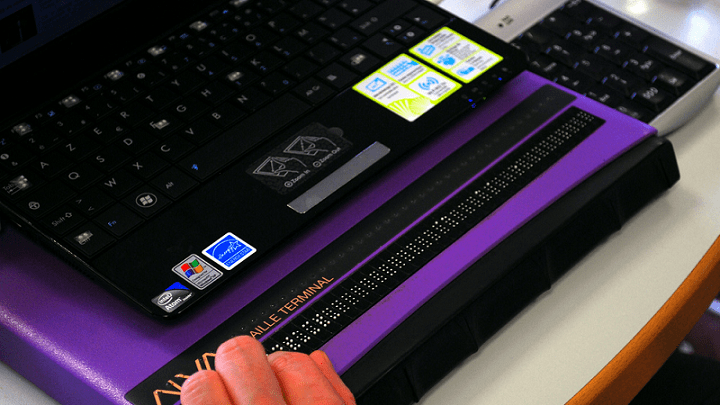
Editor’s note: Michael Taylor is a blind UsableNet contributor who has relied on a screen reader for almost twenty years, and he writes about what happens when he tries to complete everyday tasks online, from shopping and ordering food to booking travel. Because he uses these sites every day, he catches barriers that an automated scan or a quick keyboard check can miss. In this post, he walks through the login barriers that stop him before he ever reaches an account, from an unlabeled sign-in icon to verification code fields his screen reader cannot use, and each one is something you can check on your own sign-in flow.
New to the series? Start with what a screen reader is and how it works.
Much of the modern digital world's functionality is hidden behind a username and password. These days, managing profile details, contacting customer service, and saving my progress on a task all require an account, so signing in is often my first step on a site. Unfortunately, that process is not always accessible for a screen reader user like me. In this post, I will walk through the login barriers I run into, from finding the sign-in button to the form itself to two-factor authentication.
Finding the Sign-In Button
This first barrier can shut me out completely. To save space and lean into graphic interfaces, most websites I use have moved the sign-in option to an icon button in the top header bar. The most common one I run into is a small cartoon-like graphic of a person’s head. Sighted users recognize icons like these at a glance and know what they do.
My screen reader can't read an icon button correctly unless the code includes a text label. When a login button lacks that label, my screen reader either skips it completely or says something vague like “Graphic” or “Icon.” When that happens, I cannot reliably start the sign-in process.
My home internet service provider’s website is a first-hand example. Its sign-in button is unlabeled, making account management daunting.
Problems Inside the Login Form
A variety of accessibility problems can break a login form. Unlabeled text fields or action buttons leave me guessing when I enter my username and password and try to move to the next step.
Many login forms let me choose whether my password is displayed as I type it. I have had limited success with this feature. In many cases, my screen reader cannot find the toggle button that shows or hides the password. In other cases, even with the password set to show, my screen reader still won't read the characters, either as I type them or when I return to the field to check them.
Without this feature, figuring out whether I mistyped my password is difficult.
Many sign-in forms also have one or more check boxes, for things like agreeing to terms and conditions or staying signed in on the device I am using. I often have trouble with these. Sometimes my screen reader treats the checkbox as static text I can't interact with.
Other times it reports the wrong state for the checkbox. That has led to failed sign-in attempts because I believed something was true when it wasn't.
Two-Factor Authentication
In a world of heightened cyber threats, most websites I sign in to require some kind of two-factor authentication. That extra layer improves security, but it often wreaks havoc on screen reader accessibility for me. The most common version I run into is a second prompt after I enter my username and password, asking for a number code sent by text or email.
Some sites present the code entry field in separate segments, one for each digit of the code. For whatever reason, my screen reader often doesn't know what to do with these split fields. Most often, focus does not move to the next segment after I enter a digit. Trying to move focus there manually often does not work either.
Even when I get one of these segmented fields to play nice with my screen reader, the code has sometimes expired by the time I finish entering it, and I have to request a new one.
Other times the trouble is getting to the code itself. If it comes by email, the code may be part of a graphic or set in a very decorative font my screen reader does not recognize. When that happens, I cannot hear the code, and I cannot complete my login.
If I enter a code incorrectly, some sites show a temporary error message explaining why the login failed. My screen reader often doesn't read these messages, leaving me in the dark about why the attempt failed.
Where That Leaves Me
Being able to sign in to all kinds of websites easily and on my own is incredibly important to my digital freedom and independence as a blind technology user. These systems are not always accessible right now. Still, I hope this will change through awareness and meaningful accessibility improvements.
Common questions about login accessibility for screen reader users
Can screen reader users sign in through an icon-only login button?
Not when the button has no label. On my internet provider’s site, the sign-in icon is either skipped or read as “Graphic” or “Icon,” so finding the way in is a struggle.
What happens when a show password toggle does not work with a screen reader?
I lose my ability to check what I typed. Either my screen reader cannot find the toggle, or it won't read the characters even when the password is set to show.
Why are split verification code fields hard to use with a screen reader?
On the ones I have hit, focus didn't move to the next box after I typed a digit, and moving it there by hand often didn't work either. Sometimes the code expired before I could finish.
Can a screen reader read a two-factor code sent by email?
Not when the code is part of a graphic or set in a very decorative font. My screen reader cannot recognize it, so I cannot hear the code or finish logging in.
Do screen readers announce login error messages?
Often not for me. The temporary message explaining a failed code appears on screen, but my screen reader doesn't read it aloud, so I don't know why the attempt failed.
What to check on your own login and sign-in flow
Every barrier above happens before a customer reaches their account, which means everything behind the login is closed off too. On your own site, check whether the sign-in icon announces a real label, whether every field, show password toggle, and checkbox announces what it is and its correct state, and whether verification codes and error messages can be heard at all.
Some of these, like a missing label on an icon button or a form field, are the kind of issue an automated test can flag. Others, like a checkbox announcing the wrong state or an error message that is never spoken, depend on what a screen reader actually says in the moment.
Our post on what developers and QA teams miss about screen readers covers why those take a person testing with a screen reader on.
The barriers that stop someone from finishing a task are the same ones that show up in ADA web accessibility complaints, and finding one is a reason to look at the whole journey, not just a single fix. A practical place to start is seeing what your own pages flag today.
Run a free automated accessibility test with AQA to surface detectable issues like missing labels, then plan screen reader testing for the parts of your sign-in flow a scan cannot hear.